在前端开发中,我们经常需要处理元素的尺寸和位置信息,但是 clientWidth、scrollTop、scrollHeight 等概念容易混淆。本文通过图文结合的方式,详细解释这些概念的区别和使用场景。
基本概念图解
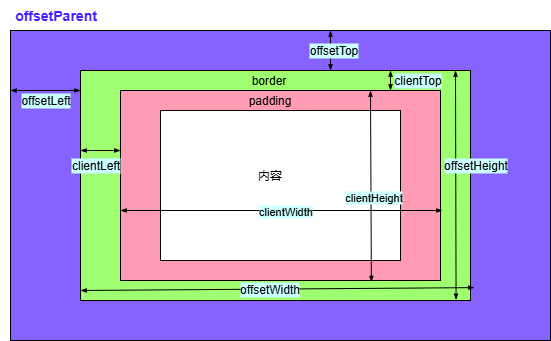
DOM盒模型结构:content + padding + border + margin
1. 尺寸相关属性
clientWidth / clientHeight
含义:元素内部的可见宽度/高度,包括 padding 但不包括边框、滚动条和外边距
1
2
3
4
|
const element = document.getElementById('myDiv');
console.log('可视宽度:', element.clientWidth);
console.log('可视高度:', element.clientHeight);
|
clientWidth/clientHeight:包含 content + padding,不包含 border 和滚动条
offsetWidth / offsetHeight
含义:元素的整体尺寸,包括内容、padding、border 和滚动条
1
2
| console.log('元素总宽度:', element.offsetWidth);
console.log('元素总高度:', element.offsetHeight);
|
offsetWidth/offsetHeight:包含 border + padding + content + 滚动条
含义:元素内容的完整尺寸,包括因溢出而不可见的部分
1
2
| console.log('内容总宽度:', element.scrollWidth);
console.log('内容总高度:', element.scrollHeight);
|
scrollWidth/scrollHeight:完整内容尺寸,包含溢出不可见部分
2. 位置相关属性
含义:元素滚动条滚动的距离
1
2
3
4
5
6
7
|
console.log('垂直滚动距离:', element.scrollTop);
console.log('水平滚动距离:', element.scrollLeft);
element.scrollTop = 100;
|
scrollTop/scrollLeft:元素滚动条滚动的距离
offsetTop / offsetLeft
含义:元素相对于其 offsetParent 的位置
1
2
| console.log('相对定位父元素的顶部距离:', element.offsetTop);
console.log('相对定位父元素的左侧距离:', element.offsetLeft);
|
3. 窗口相关属性
window.innerWidth / window.innerHeight
含义:浏览器窗口的可视区域尺寸(不包括浏览器边框和工具栏)
1
2
| console.log('窗口可视宽度:', window.innerWidth);
console.log('窗口可视高度:', window.innerHeight);
|
window.pageYOffset / window.pageXOffset
含义:页面滚动的距离(等同于 scrollY/scrollX)
1
2
| console.log('页面垂直滚动距离:', window.pageYOffset);
console.log('页面水平滚动距离:', window.pageXOffset);
|
4. 完整Demo示例
1
2
3
4
5
6
7
8
9
10
11
12
13
14
15
16
17
18
19
20
21
22
23
24
25
26
27
28
29
30
31
32
33
34
35
36
37
38
39
40
41
42
43
44
45
46
47
48
49
50
51
52
53
54
55
56
57
58
59
60
61
62
63
64
65
66
67
68
69
70
71
72
73
74
75
76
77
78
79
80
81
82
83
84
85
86
87
88
89
90
91
92
93
94
95
96
97
98
99
100
101
102
103
104
105
106
107
108
109
110
| <!DOCTYPE html>
<html lang="en">
<head>
<meta charset="UTF-8">
<meta name="viewport" content="width=device-width, initial-scale=1.0">
<title>DOM位置属性</title>
<style>
body {
padding: 0;
margin: 0;
}
.box1, .box2{
height: 100px;
width: 100px;
border: 5px solid red;
padding: 10px;
overflow: auto;
}
.box2 {
margin: 7px;
}
.parent {
/* position: relative; */
left: 100px;
width: 2500px;
height: 500px;
border: 10px solid blue;
}
.outer {
position: relative;
left: 20px;
border: 5px solid green;
}
</style>
</head>
<body>
<!-- Part1 -->
<div class="box1" id="box1">
box1
<!-- <p>Line 1</p>
<p>Line 1</p>
<p>Line 1</p>
<p>Line 1</p>
<p>Line 1</p>
<p>Line 1</p>
<p>Line 1</p>
<p>Line 1</p> -->
</div>
<!-- Part 2 -->
<div class="outer">
<div class="parent">
<div class="box2" id="box2">box2</div>
</div>
</div>
</body>
<script>
/*
DOM 元素与位置有关的属性计算方式,以下都是与浏览器横轴有关的值:
clientWidth
offsetWidth
clientLeft
offsetLeft
clientX
offsetX
pageX
screenX
getBoundingClientRect()
*/
var box1 = document.getElementById('box1')
// 1. 元素内部宽度 clientWidth = width + padding
console.log('box1 clientWidth:', box1.clientWidth, `元素内部宽度 clientWidth = width + padding`)
// 2. 元素内部宽度 offsetWidth = width + padding + border + scroll
console.log('box1 offsetWidth:', box1.offsetWidth, `元素内部宽度 offsetWidth = width + padding + border`)
// 3. clientLeft = 元素左边框的宽度 (borderLeftWidth + 滚动条宽度)
console.log('box1 clientLeft:', box1.clientLeft, `clientLeft = 元素左边框的宽度`)
// 4. offsetLeft: 元素左边框与定位的父级元素(即offsetParent)的距离
// (注意父级元素需要设置定位,即 position非static, 如果父元素都没有定位则会一直往上找到祖先元素body)
var box2 = document.getElementById('box2')
console.log('box2 offsetLeft:', box2.offsetLeft, `offsetLeft: 元素左边框与定位的父级元素的距离`)
box2.onclick = function(event) {
// 5. clientX: 鼠标相对于[浏览器窗口可视区]的x坐标(横向)
const clientX = event.clientX;
console.log(`box2 clientX: `, clientX, `clientX: 鼠标相对于浏览器窗口可视区的x坐标(横向)`);
// 6. offsetX: 鼠标相对于[事件源元素]的x坐标
const offsetX = event.offsetX;
console.log(`box2 offsetX:`, offsetX,`offsetX: 鼠标相对于事件源元素的x坐标`);
// 7. pageX: 鼠标相对于[文档]的x坐标,而非窗口坐标
// (注意,会计算滚动距离,如果没有滚动距离,则跟clientX是一样的)
const pageX = event.pageX;
console.log(`box2 pageX:`, pageX, `pageX: 鼠标相对于文档的x坐标,而非窗口坐标`);
// 8. screenX: 鼠标相对于显示[器屏幕]最左侧的x坐标 (可以通过,拖动浏览器来查看效果)
const screenX = event.screenX;
console.log(`box2 screenX:`, screenX, `screenX: 鼠标相对于显示器屏幕左侧位置的x坐标`)
// 9. left: 元素左边框相对于可视区的距离,有可能为负值
const left = box2.getBoundingClientRect().left;
console.log(`box2.getBoundingClientRect().left:`, left, `元素左边框相对于可视区的距离,有可能为负值`)
}
</script>
</html>
|
5. 实际应用示例
1. 自动滚动到底部(聊天室场景)
1
2
3
4
5
6
7
8
9
10
11
12
13
14
15
16
17
18
19
| function autoScrollToBottom(chatContainer) {
const isUserScrolling = chatContainer.scrollTop + chatContainer.clientHeight < chatContainer.scrollHeight - 10;
if (!isUserScrolling) {
chatContainer.scrollTop = chatContainer.scrollHeight;
}
}
function addMessage(message) {
const chatContainer = document.getElementById('chatContainer');
const messageElement = document.createElement('div');
messageElement.textContent = message;
chatContainer.appendChild(messageElement);
autoScrollToBottom(chatContainer);
}
|
2. 智能提示框位置计算
1
2
3
4
5
6
7
8
9
10
11
12
13
14
15
16
17
18
19
20
21
22
23
24
25
26
27
28
29
30
31
32
33
34
35
36
37
38
39
40
41
42
43
44
45
46
47
48
49
50
51
| function positionTooltip(triggerElement, tooltip) {
const triggerRect = triggerElement.getBoundingClientRect();
const tooltipRect = tooltip.getBoundingClientRect();
const windowHeight = window.innerHeight;
const windowWidth = window.innerWidth;
const scrollTop = window.pageYOffset;
const scrollLeft = window.pageXOffset;
let top, left;
const hasSpaceBelow = triggerRect.bottom + tooltipRect.height <= windowHeight;
const hasSpaceAbove = triggerRect.top >= tooltipRect.height;
if (hasSpaceBelow) {
top = triggerRect.bottom + scrollTop + 5;
} else if (hasSpaceAbove) {
top = triggerRect.top + scrollTop - tooltipRect.height - 5;
} else {
top = scrollTop + (windowHeight - tooltipRect.height) / 2;
}
left = triggerRect.left + scrollLeft;
if (left + tooltipRect.width > scrollLeft + windowWidth) {
left = triggerRect.right + scrollLeft - tooltipRect.width;
}
tooltip.style.position = 'absolute';
tooltip.style.top = `${top}px`;
tooltip.style.left = `${left}px`;
}
document.querySelectorAll('[data-tooltip]').forEach(element => {
element.addEventListener('mouseenter', (e) => {
const tooltip = document.createElement('div');
tooltip.className = 'tooltip';
tooltip.textContent = e.target.dataset.tooltip;
document.body.appendChild(tooltip);
positionTooltip(e.target, tooltip);
});
});
|
3. 元素拖拽功能
1
2
3
4
5
6
7
8
9
10
11
12
13
14
15
16
17
18
19
20
21
22
23
24
25
26
27
28
29
30
31
32
33
34
35
36
37
38
39
40
41
42
43
44
45
46
47
48
49
50
51
52
53
54
55
56
57
58
59
60
61
62
63
64
| class Draggable {
constructor(element) {
this.element = element;
this.isDragging = false;
this.startX = 0;
this.startY = 0;
this.offsetX = 0;
this.offsetY = 0;
this.init();
}
init() {
this.element.addEventListener('mousedown', this.onMouseDown.bind(this));
document.addEventListener('mousemove', this.onMouseMove.bind(this));
document.addEventListener('mouseup', this.onMouseUp.bind(this));
this.element.style.position = 'absolute';
this.element.style.cursor = 'move';
}
onMouseDown(e) {
this.isDragging = true;
this.startX = e.clientX;
this.startY = e.clientY;
const rect = this.element.getBoundingClientRect();
this.offsetX = e.clientX - rect.left;
this.offsetY = e.clientY - rect.top;
e.preventDefault();
}
onMouseMove(e) {
if (!this.isDragging) return;
const newX = e.clientX - this.offsetX + window.pageXOffset;
const newY = e.clientY - this.offsetY + window.pageYOffset;
const maxX = document.documentElement.scrollWidth - this.element.offsetWidth;
const maxY = document.documentElement.scrollHeight - this.element.offsetHeight;
const constrainedX = Math.max(0, Math.min(newX, maxX));
const constrainedY = Math.max(0, Math.min(newY, maxY));
this.element.style.left = `${constrainedX}px`;
this.element.style.top = `${constrainedY}px`;
}
onMouseUp() {
this.isDragging = false;
}
}
document.querySelectorAll('.draggable').forEach(element => {
new Draggable(element);
});
|
4. 虚拟滚动列表优化
1
2
3
4
5
6
7
8
9
10
11
12
13
14
15
16
17
18
19
20
21
22
23
24
25
26
27
28
29
30
31
32
33
34
35
36
37
38
39
40
41
42
43
44
45
46
47
48
49
50
51
52
53
54
55
56
57
58
59
60
| class VirtualScrollList {
constructor(container, itemHeight, totalItems) {
this.container = container;
this.itemHeight = itemHeight;
this.totalItems = totalItems;
this.visibleItems = Math.ceil(container.clientHeight / itemHeight) + 2;
this.init();
}
init() {
this.scrollContainer = document.createElement('div');
this.scrollContainer.style.height = `${this.totalItems * this.itemHeight}px`;
this.scrollContainer.style.position = 'relative';
this.itemsContainer = document.createElement('div');
this.itemsContainer.style.position = 'absolute';
this.itemsContainer.style.top = '0';
this.itemsContainer.style.width = '100%';
this.scrollContainer.appendChild(this.itemsContainer);
this.container.appendChild(this.scrollContainer);
this.container.addEventListener('scroll', this.onScroll.bind(this));
this.render();
}
onScroll() {
this.render();
}
render() {
const scrollTop = this.container.scrollTop;
const startIndex = Math.floor(scrollTop / this.itemHeight);
const endIndex = Math.min(startIndex + this.visibleItems, this.totalItems);
this.itemsContainer.innerHTML = '';
for (let i = startIndex; i < endIndex; i++) {
const item = document.createElement('div');
item.style.height = `${this.itemHeight}px`;
item.style.position = 'absolute';
item.style.top = `${i * this.itemHeight}px`;
item.style.width = '100%';
item.textContent = `Item ${i + 1}`;
this.itemsContainer.appendChild(item);
}
}
}
const listContainer = document.getElementById('virtualList');
new VirtualScrollList(listContainer, 50, 10000);
|
5. 滚动加载更多内容
1
2
3
4
5
6
7
8
9
10
11
12
13
14
15
16
17
18
19
20
21
22
23
24
25
26
27
28
29
30
31
32
33
34
35
36
37
38
39
40
41
42
43
44
45
46
47
48
49
50
51
52
53
54
55
56
57
58
59
60
61
62
63
64
65
66
67
| class InfiniteScroll {
constructor(container, loadMore) {
this.container = container;
this.loadMore = loadMore;
this.loading = false;
this.threshold = 100;
this.init();
}
init() {
this.container.addEventListener('scroll', this.onScroll.bind(this));
}
onScroll() {
if (this.loading) return;
const { scrollTop, scrollHeight, clientHeight } = this.container;
const distanceFromBottom = scrollHeight - (scrollTop + clientHeight);
if (distanceFromBottom <= this.threshold) {
this.loading = true;
this.showLoading();
this.loadMore().then(() => {
this.loading = false;
this.hideLoading();
}).catch(() => {
this.loading = false;
this.hideLoading();
});
}
}
showLoading() {
const loader = document.createElement('div');
loader.id = 'infinite-loader';
loader.textContent = '加载中...';
loader.style.padding = '20px';
loader.style.textAlign = 'center';
this.container.appendChild(loader);
}
hideLoading() {
const loader = document.getElementById('infinite-loader');
if (loader) {
loader.remove();
}
}
}
const scrollContainer = document.getElementById('scrollContainer');
new InfiniteScroll(scrollContainer, async () => {
await new Promise(resolve => setTimeout(resolve, 1000));
for (let i = 0; i < 10; i++) {
const item = document.createElement('div');
item.textContent = `新项目 ${Date.now()}-${i}`;
item.style.padding = '10px';
item.style.borderBottom = '1px solid #eee';
scrollContainer.appendChild(item);
}
});
|
6. 判断元素是否在可视区域内
1
2
3
4
5
6
7
8
9
10
11
12
13
14
15
16
17
18
19
20
21
22
23
24
25
26
27
28
29
30
31
32
33
34
| function isElementInViewport(element, threshold = 0) {
const rect = element.getBoundingClientRect();
const windowHeight = window.innerHeight;
const windowWidth = window.innerWidth;
const visibleHeight = Math.min(rect.bottom, windowHeight) - Math.max(rect.top, 0);
const visibleWidth = Math.min(rect.right, windowWidth) - Math.max(rect.left, 0);
const elementArea = rect.width * rect.height;
const visibleArea = Math.max(0, visibleHeight) * Math.max(0, visibleWidth);
return elementArea > 0 && (visibleArea / elementArea) >= threshold;
}
function setupLazyLoading() {
const images = document.querySelectorAll('img[data-src]');
function checkImages() {
images.forEach(img => {
if (isElementInViewport(img, 0.1) && img.dataset.src) {
img.src = img.dataset.src;
delete img.dataset.src;
}
});
}
window.addEventListener('scroll', checkImages);
window.addEventListener('resize', checkImages);
checkImages();
}
|
7. 固定导航栏(吸顶效果)
1
2
3
4
5
6
7
8
9
10
11
12
13
14
15
16
17
18
19
20
21
22
23
24
25
26
27
28
29
30
31
32
33
34
35
36
37
38
39
40
41
42
43
| class StickyNavigation {
constructor(nav) {
this.nav = nav;
this.originalTop = nav.offsetTop;
this.placeholder = null;
this.init();
}
init() {
this.placeholder = document.createElement('div');
this.placeholder.style.height = `${this.nav.offsetHeight}px`;
this.placeholder.style.display = 'none';
this.nav.parentNode.insertBefore(this.placeholder, this.nav);
window.addEventListener('scroll', this.onScroll.bind(this));
this.onScroll();
}
onScroll() {
const scrollTop = window.pageYOffset;
if (scrollTop >= this.originalTop) {
this.nav.style.position = 'fixed';
this.nav.style.top = '0';
this.nav.style.left = '0';
this.nav.style.right = '0';
this.nav.style.zIndex = '1000';
this.placeholder.style.display = 'block';
} else {
this.nav.style.position = 'static';
this.placeholder.style.display = 'none';
}
}
}
const navigation = document.getElementById('mainNav');
new StickyNavigation(navigation);
|
8. 回到顶部按钮
1
2
3
4
5
6
7
8
9
10
11
12
13
14
15
16
17
18
19
20
21
22
23
24
25
26
27
28
29
30
31
32
33
34
35
36
37
38
39
40
41
42
43
44
45
46
47
48
49
50
51
52
53
54
55
56
57
58
59
60
61
62
63
64
65
66
67
68
69
| class BackToTop {
constructor() {
this.button = this.createButton();
this.init();
}
createButton() {
const button = document.createElement('button');
button.textContent = '↑';
button.style.cssText = `
position: fixed;
bottom: 30px;
right: 30px;
width: 50px;
height: 50px;
border-radius: 50%;
background: #007bff;
color: white;
border: none;
cursor: pointer;
opacity: 0;
transition: opacity 0.3s;
z-index: 1000;
`;
document.body.appendChild(button);
return button;
}
init() {
window.addEventListener('scroll', () => {
if (window.pageYOffset > 300) {
this.button.style.opacity = '1';
} else {
this.button.style.opacity = '0';
}
});
this.button.addEventListener('click', () => {
this.smoothScrollToTop();
});
}
smoothScrollToTop() {
const startPosition = window.pageYOffset;
const startTime = performance.now();
const duration = 500;
function animation(currentTime) {
const elapsed = currentTime - startTime;
const progress = Math.min(elapsed / duration, 1);
const easeOutQuart = 1 - Math.pow(1 - progress, 4);
window.scrollTo(0, startPosition * (1 - easeOutQuart));
if (progress < 1) {
requestAnimationFrame(animation);
}
}
requestAnimationFrame(animation);
}
}
new BackToTop();
|
6. 常见混淆点对比
| 属性 |
包含内容 |
使用场景 |
重要说明 |
| clientWidth |
content + padding |
获取可视区域大小 |
不包含 border、滚动条、margin |
| offsetWidth |
content + padding + border + 滚动条 |
获取元素完整尺寸 |
不包含 margin |
| scrollWidth |
完整内容宽度(包含溢出) |
判断是否有滚动内容 |
内容的实际宽度 |
| scrollTop |
滚动距离 |
控制滚动位置 |
元素滚动条的位置 |
| offsetTop |
相对定位父元素的距离 |
获取元素位置 |
到 offsetParent 的距离 |
🔍 关键概念澄清
盒模型结构(从内到外):
1
| content(内容) → padding(内边距) → border(边框) → margin(外边距)
|
各属性包含范围:
- clientWidth/Height:
content + padding
- offsetWidth/Height:
content + padding + border + 滚动条
- margin 永远不包含在任何尺寸属性中!
记忆技巧:
1
2
3
4
5
6
7
8
9
10
11
| ┌─────── margin ───────┐ ← 外边距(不计入任何尺寸属性)
│ ┌───── border ─────┐ │
│ │ ┌─── padding ──┐ │ │
│ │ │ ┌─ content ─┐ │ │ │
│ │ │ │ 100px │ │ │ │ 如果 content=100px, padding=10px,
│ │ │ │ │ │ │ │ border=2px, margin=5px
│ │ │ └─ 100px ───┘ │ │ │
│ │ └─── +20px ─────┘ │ │ 则:
│ └───── +4px ─────────┘ │ clientWidth = 100 + 20 = 120px
└───── +10px ─────────────┘ offsetWidth = 100 + 20 + 4 = 124px
margin 不计入任何计算!
|
7. 浏览器兼容性注意事项
1
2
3
4
5
6
7
8
9
10
11
12
13
14
|
function getScrollTop() {
return window.pageYOffset ||
document.documentElement.scrollTop ||
document.body.scrollTop || 0;
}
function getWindowSize() {
return {
width: window.innerWidth || document.documentElement.clientWidth,
height: window.innerHeight || document.documentElement.clientHeight
};
}
|
总结
- client系列:可视区域尺寸(不含滚动条和边框)
- offset系列:元素完整尺寸和相对位置
- scroll系列:内容完整尺寸和滚动距离
- window系列:浏览器窗口相关信息
掌握这些概念的区别,能够帮助我们更好地处理页面布局、滚动效果和响应式设计等常见需求。
希望这篇文章能够帮助你理清这些容易混淆的DOM位置概念!